One day you open your laptop and see all work documents, family photos or crucial data on Windows 11, sounds like a nightmare right? But the good thing is lost doesn’t mean gone forever.
I have been using Windows for the last 5 years and I am fully aware of its functioning. I have faced file loss scenarios and accidental deleting issues several times, so I can say that in most cases recovery is possible if you use the methods carefully.
In this guide I will show you the proven methods that help you recover the deleted files on Windows 11 using built-in tools along with advanced recovery techniques.
Method 1: Recover Deleted Files from the Recycle Bin (Fastest Fix)
This is the simplest and most overlooked solution.
Steps:
- Open the Recycle Bin from the desktop
- Locate your deleted file or folder
- Right-click → Restore
- The file returns to its original location
When this works best:
- Files deleted using the Delete key
- Items not removed via Shift + Delete
- Files not deleted by cleanup tools
Valuable Tips: Sort by “Date Deleted” to find files quickly.
Method 2: Restore Files Using File History (Built-in Backup)
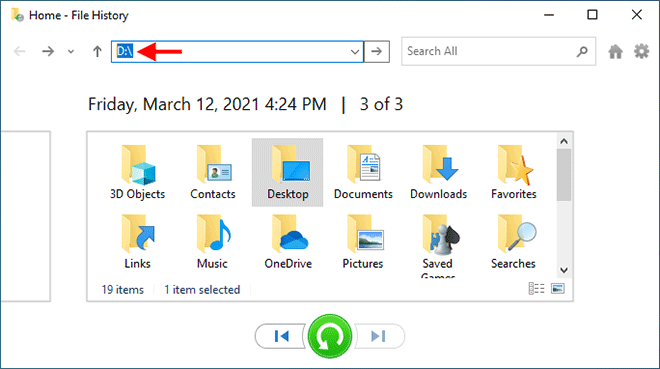
If File History was enabled earlier, you’re in luck.
How to recover files using File History:
- Open Settings
- Go to System → Storage → Advanced storage settings
- Click Backup options
- Select Restore files from a current backup
- Browse versions and restore the file
Best use cases:
- Recovering older versions
- Restoring files after accidental overwrites
- Recovering from folder-level deletion
File History must have been enabled before data loss.
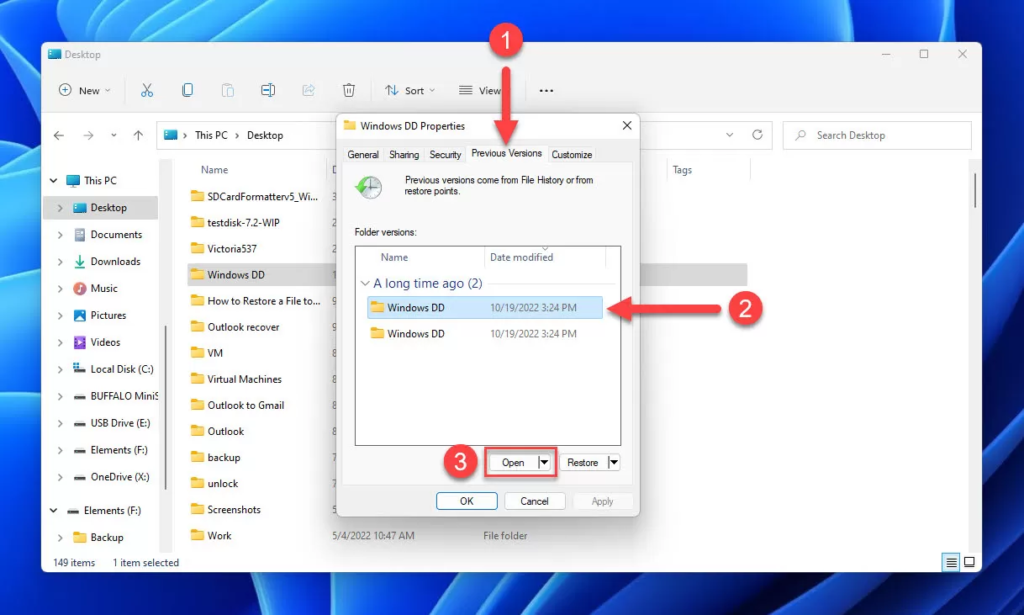
Method 3: Use “Restore Previous Versions” (Hidden Gem)
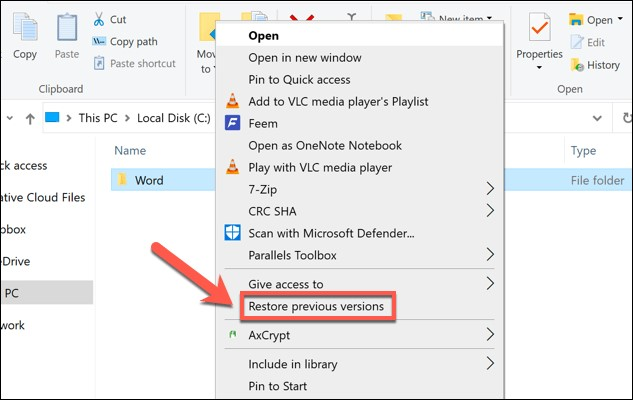
This feature relies on restore points and shadow copies.
Steps:
Navigate to the original folder location
Right-click the folder → Properties
Open the Previous Versions tab
Select a version → Restore
Works well for:
- Modified or replaced files
- Folder-level recovery
- Rollbacks after software installation issues
Method 4: Recover Deleted Files Using Windows File Recovery (Advanced)
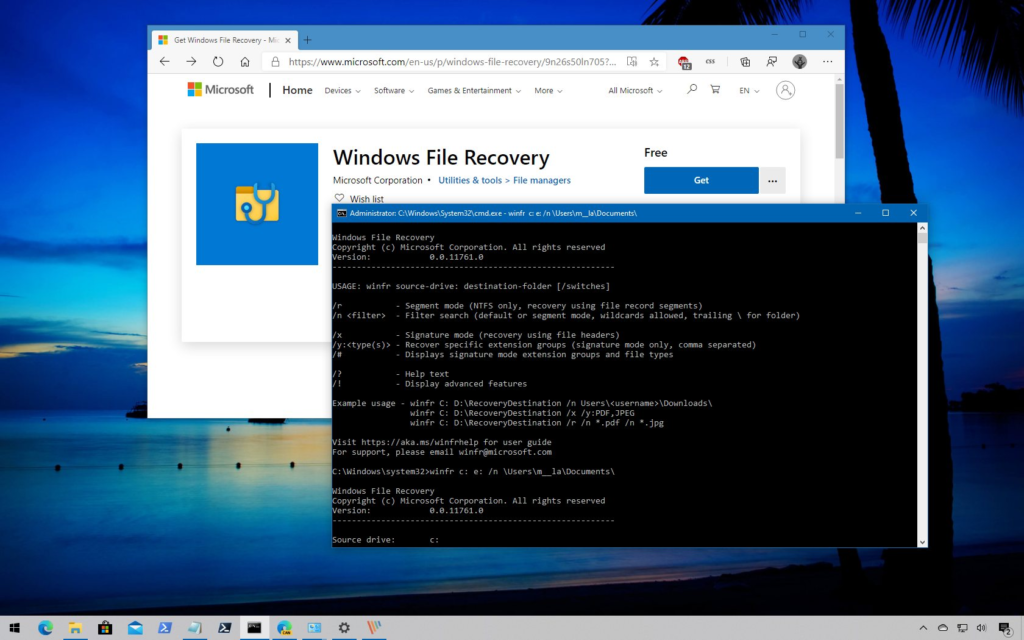
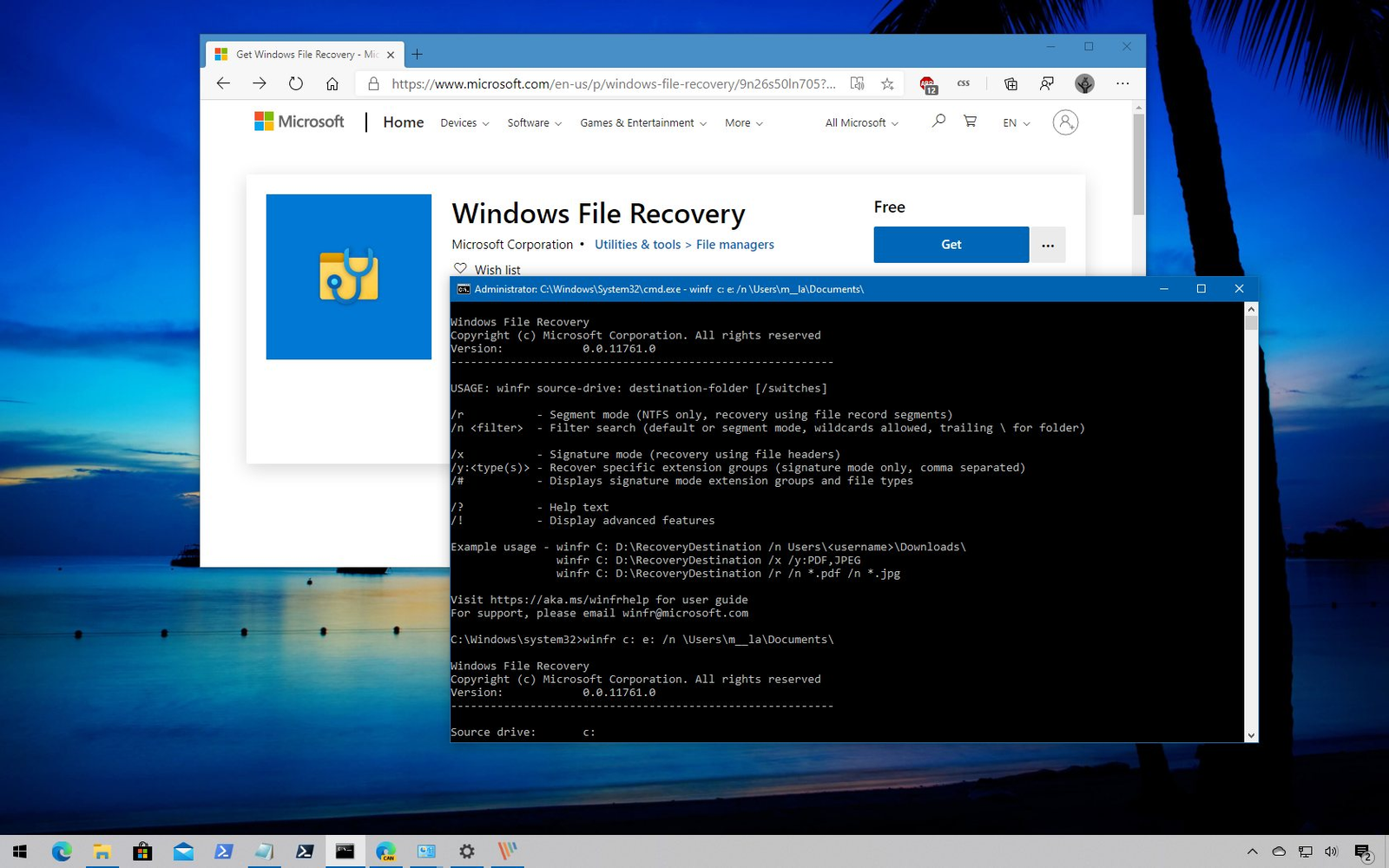
Microsoft provides a command-line recovery tool for deeper file recovery.
How to use Windows File Recovery:
- Open Microsoft Store
- Install Windows File Recovery
- Open Command Prompt as Administrator
- Use a command like:
| winfr C: D: /regular /n *.docx |
Method 5: Recover Files Using Recovbyte Data Recovery Software
When Windows tools fail, third-party recovery software like Recovbyte can help.
When to use recovery software:
- Shift + Deleted files
- Emptied Recycle Bin
- Formatted drives
- External USB or SD card recovery
Best practices:
- Install software on a different drive
- Run a deep scan
- Preview files before recovery
Avoid installing recovery software on the same drive you’re recovering from.
Method 6: Restore Files from Cloud Backups (OneDrive & Others)
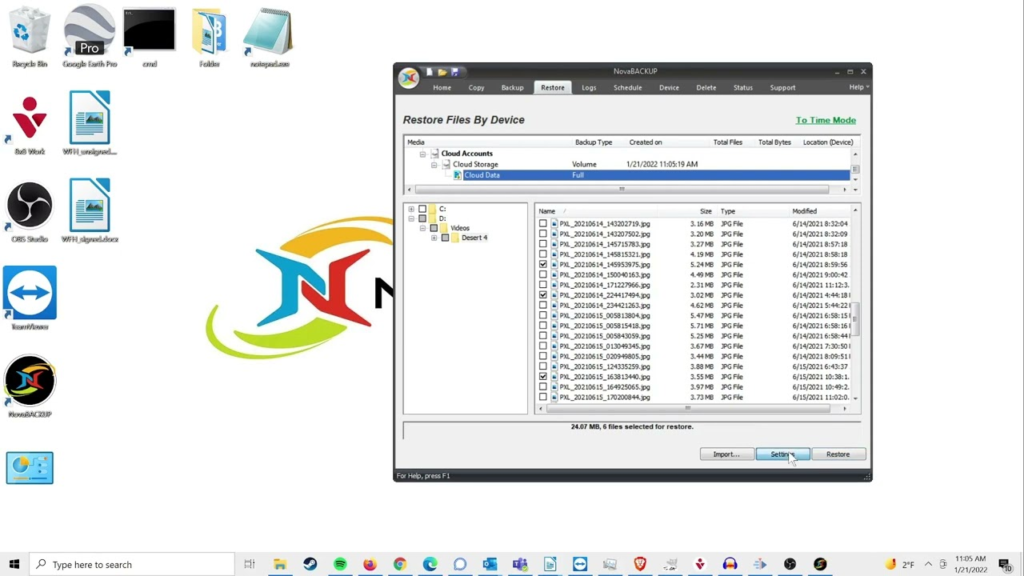
If you use OneDrive or another cloud service, your files may already be safe.
Recover from OneDrive:
- Visit OneDrive online
- Open Recycle Bin
- Restore deleted files
- Sync back to your PC
Bonus:
- Version history for files
- Protection against ransomware
- Recovery even after local deletion
How to Prevent Data Loss on Windows 11 (Future-Proofing)
As someone who’s handled recovery cases for years, prevention is always easier than recovery.
Recommended setup:
- Enable File History
- Use OneDrive auto-sync
- Create system restore points
- Maintain regular offline backups
Conclusion
In most cases, recovering deleted files on Windows 11 is possible, but it depends on how well you use the above given methods. Windows in-built tools can help you out in most basic cases on the other hand advanced recovery software like Recovbyte is required when the damage is deeper than you think.
From my professional experience, users who maintain backups rarely face permanent data loss. If you haven’t set one up yet, now is the best time.